Exporting Data
Download your CRM data in CSV or JSON format. You can export individual entity types or request a full account export for data portability.
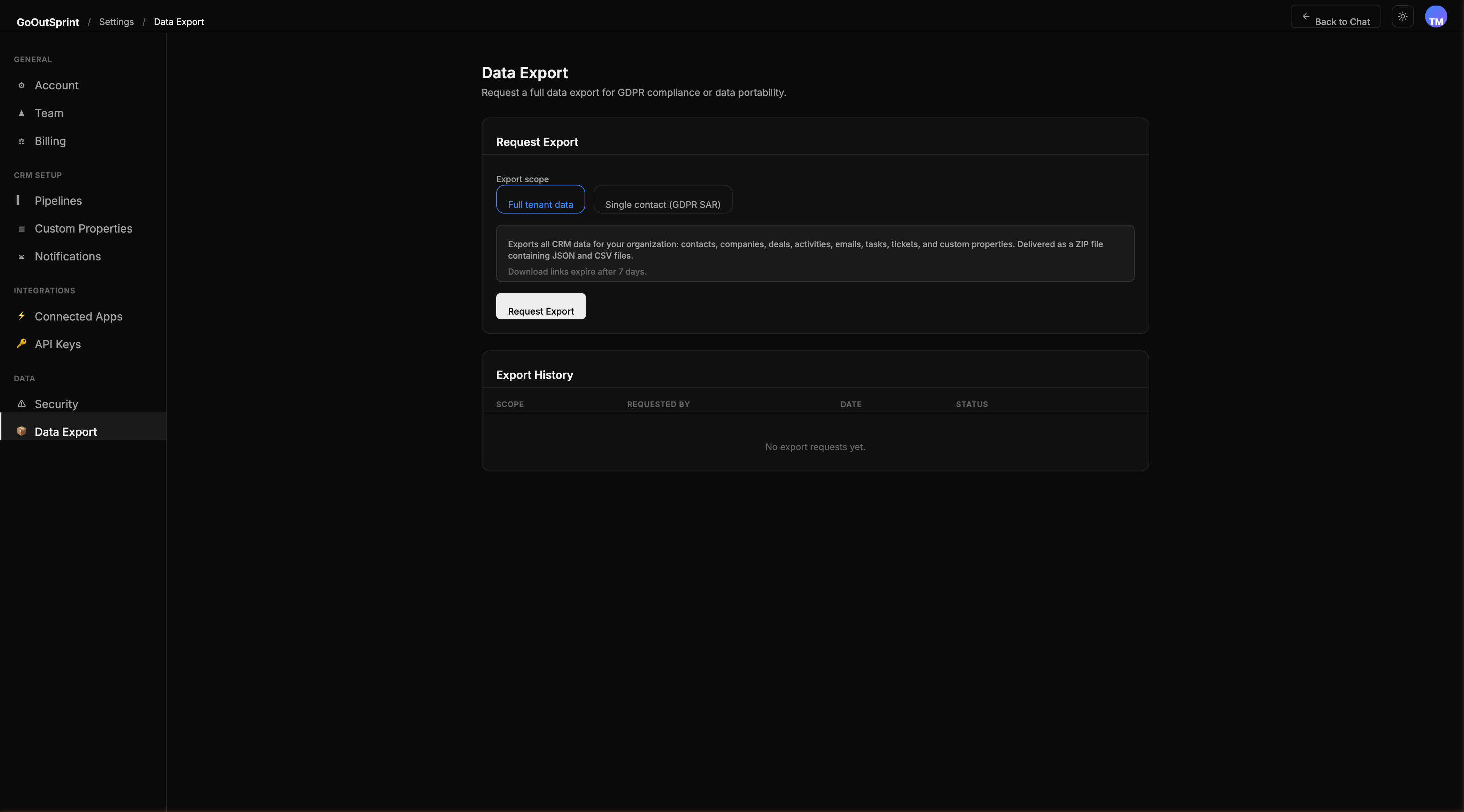
Accessing Data Export
Navigate to Settings > Data Export to see two export options and an export history table.
Full Tenant Data Export
Export your entire CRM dataset:
- In the Full tenant data section, click Export All Data
- Confirm the request
The full export includes all entities, custom properties, attachments, and conversations as a ZIP file. You will receive an email with the download link when the export is ready.
Note
Download links expire after 24 hours. If you need the file again, create a new export request.
Single Contact Export (GDPR SAR)
Export all data for a specific contact to fulfil a data subject access request:
- In the Single contact (GDPR SAR) section, enter the contact's email address
- Click Export
This generates a comprehensive package including the contact record, emails, activities, deals, form submissions, and tickets associated with that contact.
Export History
Below the export options, the Export History table shows all past exports with their date, type, status, and download link.
Export Permissions
Exports respect your role permissions. You can only export records you have access to view. The full account export is available to the Admin role only.
GDPR Single-Contact Export
To export all data for a specific contact (for a data subject access request):
- Go to Settings > Import / Export
- Select Single contact / GDPR SAR scope
- Enter the contact's email address
- Click Export
This generates a comprehensive package including the contact record, emails, activities, deals, form submissions, and tickets associated with that contact.