Inviting Team Members
Add your team to Outsprint by sending email invitations. Each invited member receives a branded email with a link to set up their account.
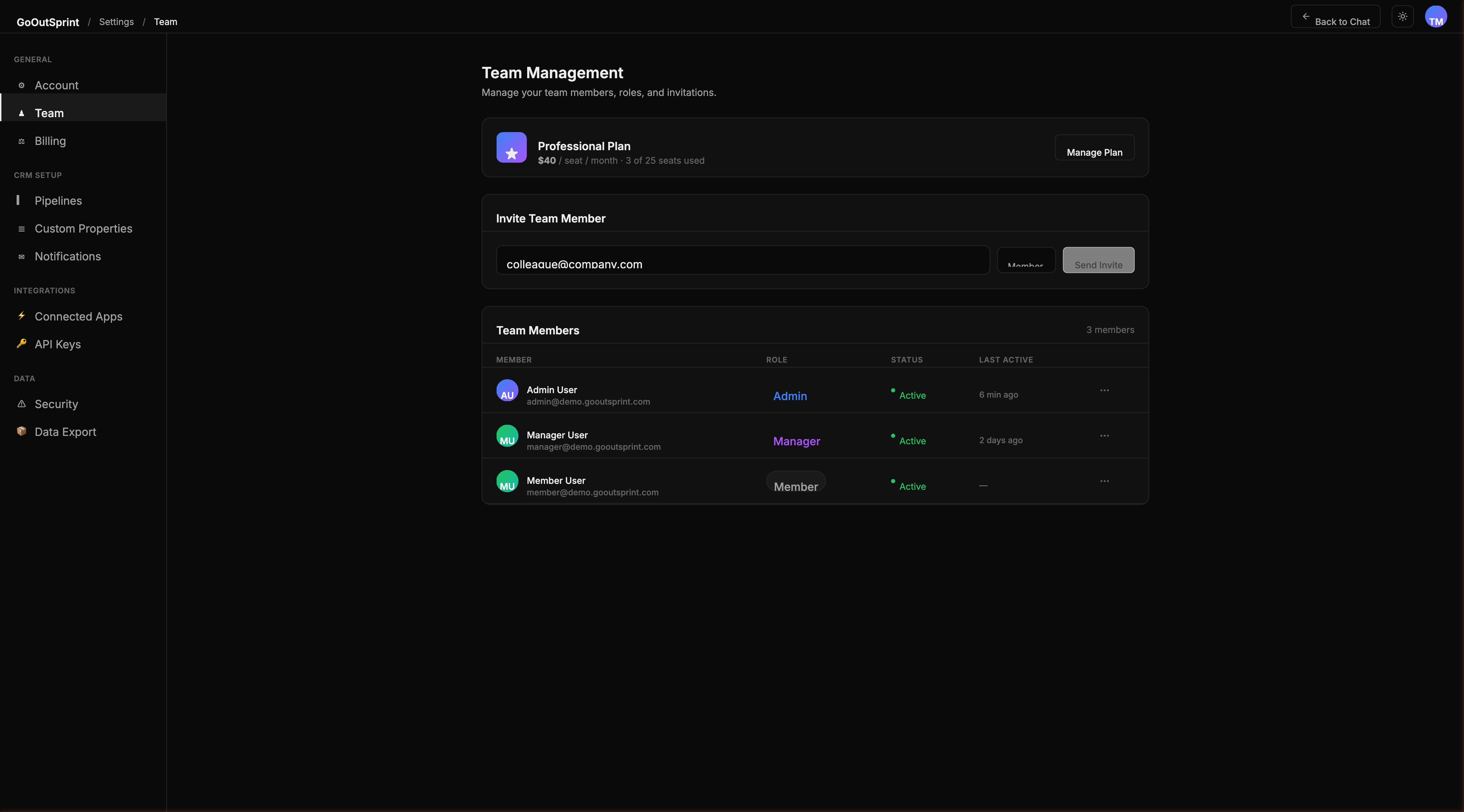
Sending an Invitation
- Go to Settings > Team
- Enter the team member's email address
- Select a role: Admin, Manager, or Member
- Click Send Invite
The invitee receives an email with a link to set their password and complete onboarding.
Pro Tip
You can invite multiple people at once by clicking Add multiple and entering comma-separated email addresses or one email per line.
Bulk Invitations
For larger teams, use the bulk invite option:
- Click Add multiple below the invite form
- Enter email addresses separated by commas or one per line
- Select the default role for all invitees
- Click Send Invites
You will see a summary showing how many invites were sent and any that failed (e.g., duplicate emails).
Managing Pending Invites
Pending invitations appear in a summary card below the team members table.
- Resend -- click to re-send the invitation email
- Revoke -- click to cancel the invitation before it is accepted
Note
Invitations expire after 7 days. If an invite expires, you can resend it from the pending invites section.
Roles Overview
| Role | What They Can Do |
|---|---|
| Admin | Full access to all settings, billing, team management, and CRM data |
| Manager | Full CRM access, can invite members, can view all records |
| Member | Standard CRM access, can view and edit their own and team-shared records |
For more details on permissions, see Roles & Permissions.
Billing Impact
Your subscription seat count is updated automatically when an invited user accepts their invitation and joins the account. Seats are prorated for the current billing period.