Pipeline Configuration
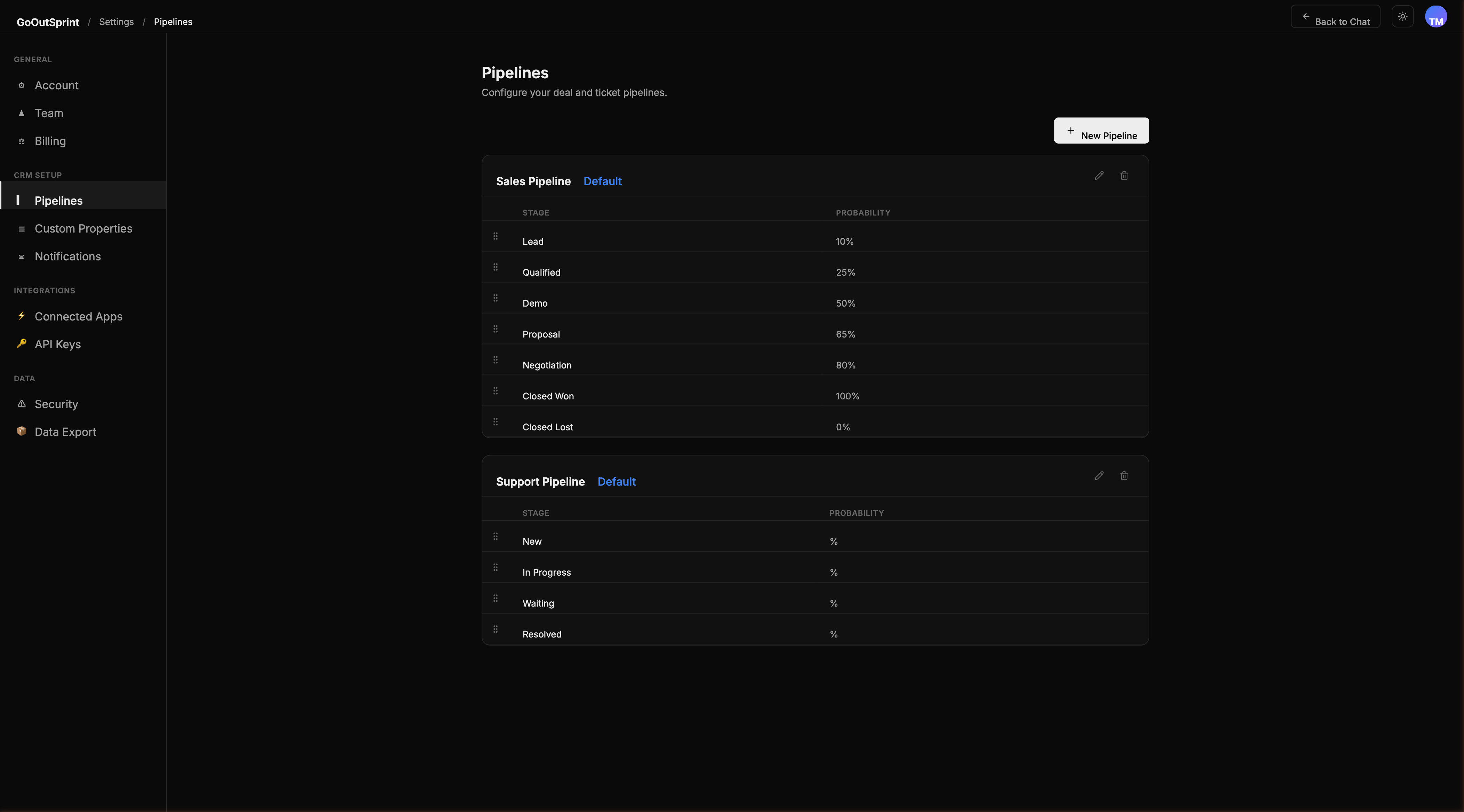
Pipelines define the stages that your deals and tickets move through. You can create multiple pipelines for different sales processes or support workflows.
Understanding Pipelines
Outsprint supports two types of pipelines:
- Deal Pipelines -- track your sales process from prospecting to close
- Ticket Pipelines -- manage support requests from intake to resolution
Each pipeline contains an ordered list of stages. One pipeline of each type is marked as the default and is used when creating new records.
Viewing Your Pipelines
Navigate to Settings > Pipelines to see all your deal and ticket pipelines listed with their stage count and default status.
Creating a Pipeline
- Go to Settings > Pipelines
- Click + New Pipeline under the appropriate section (Deal or Ticket)
- Enter a pipeline name
- Add stages with names and probability percentages (for deal pipelines)
- Click Save Pipeline
Editing Stages
Click Edit on any pipeline to open the stage editor:
- Add a stage -- click + Add Stage at the bottom of the list
- Reorder stages -- drag stages using the grip handle on the left
- Set probability -- for deal pipelines, set the win probability percentage for each stage
- Mark Closed Won / Closed Lost -- for deal pipelines, exactly one stage must be marked as each
- Mark Resolved / Closed -- for ticket pipelines, at least one stage must be marked
- Delete a stage -- click the remove button (if the stage has records, you will be asked to move them first)
Note
Deal pipelines must have at least two stages, including exactly one "Closed Won" and one "Closed Lost" stage.
Default Pipelines
Outsprint creates a default Sales Pipeline and a Support Pipeline during setup. The default Sales Pipeline stages and their win probabilities are:
| Stage | Probability |
|---|---|
| Lead | 10% |
| Qualified | 25% |
| Demo | 50% |
| Proposal | 65% |
| Negotiation | 80% |
| Closed Won | 100% |
| Closed Lost | 0% |
The default Support Pipeline includes stages: New, In Progress, Waiting, and Resolved.
You can modify these at any time. To change the default pipeline, toggle the Default checkbox in the pipeline editor or on the pipeline card.
Deleting a Pipeline
If a pipeline has no active records, you can delete it immediately. If it contains deals or tickets, you will be asked to move them to another pipeline first.
Pro Tip
You can also manage pipelines through chat. Try "Add a stage called Legal Review after Proposal in Enterprise Sales" and the AI assistant will handle it.