Removing Team Members
When someone leaves your team, you can deactivate or permanently remove them from your Outsprint account.
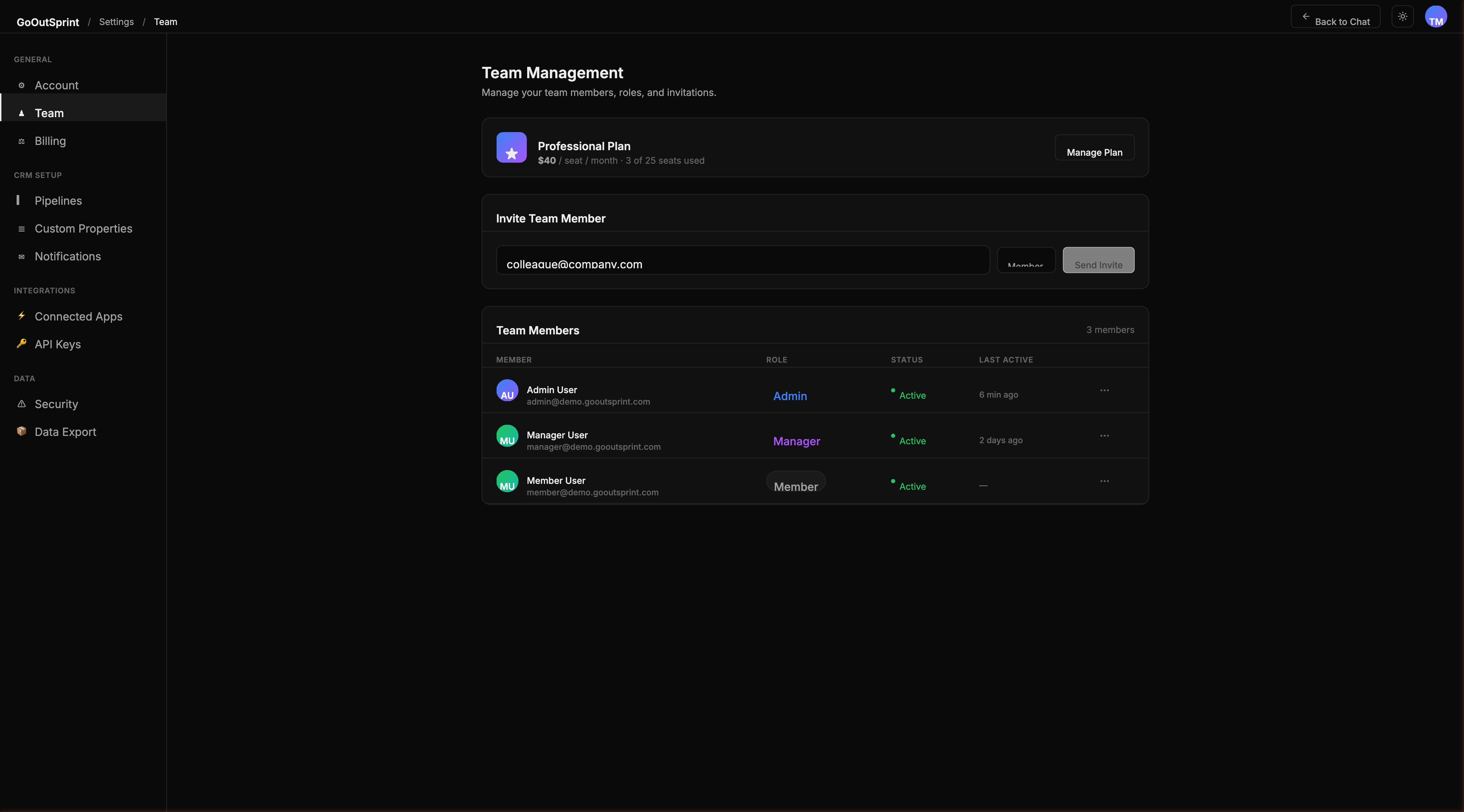
Deactivating a Member
Deactivation immediately revokes access while preserving their data.
- Go to Settings > Team
- Find the team member in the list
- Click the ... menu and select Deactivate
- Choose how to handle their records:
- Reassign to a specific team member -- select someone from the dropdown
- Reassign to Unassigned -- records can be claimed later
- Leave ownership as-is -- records remain visible but the owner is marked inactive
- Confirm the deactivation
Note
Deactivating a user automatically decreases your billable seat count. The change is reflected on your next invoice with a prorated credit.
Reactivating a Member
If you need to restore access for a deactivated user:
- Go to Settings > Team
- Find the deactivated user (shown with a grey status indicator)
- Click the ... menu and select Reactivate
The user will regain access and receive a notification email. Your seat count will increase accordingly.
Permanently Removing a Member
Permanent removal deletes the user from your account entirely. This can only be done after the user has been deactivated.
- Deactivate the user first
- Click the ... menu on the deactivated user and select Remove
- Type the user's email to confirm
- Click Remove permanently
Warning
Permanent removal cannot be undone. The user's authentication account is deleted and they cannot be re-invited with the same credentials.
Self-Protection Rules
- You cannot deactivate or remove yourself
- You cannot change your own role
- The last admin in the organisation cannot be deactivated or removed -- assign another admin first