Session Management
Monitor and manage all active login sessions across your organisation. You can set session timeouts and terminate sessions instantly when needed.
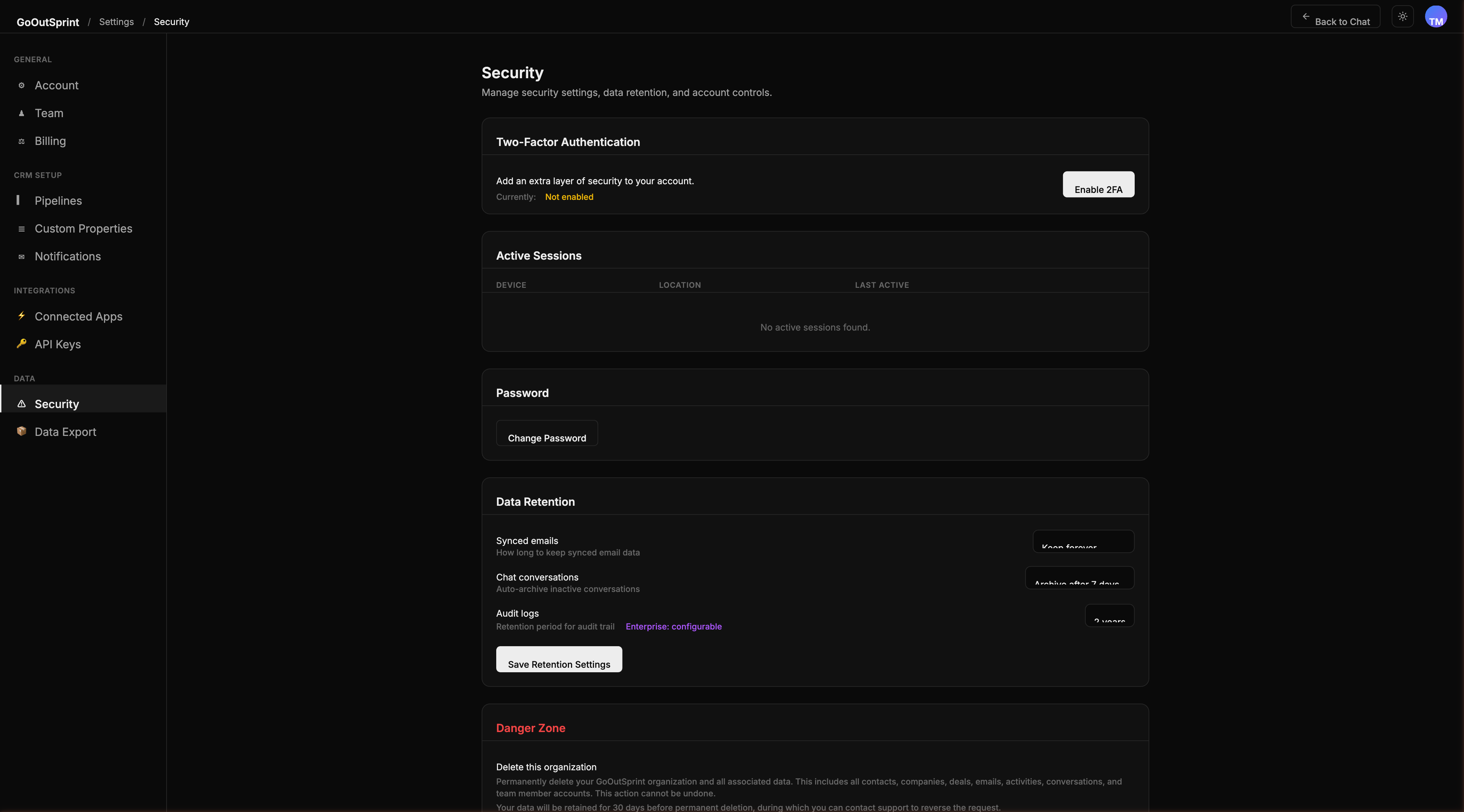
Viewing Active Sessions
- Navigate to Settings > Security
- Find the Session Management card
The table displays all active sessions with the following details:
| Column | Description |
|---|---|
| User | The team member's name |
| Device | Browser and operating system (e.g., Chrome/Mac) |
| Last Active | When the session was last used |
| Action | End button to terminate the session |
Setting Session Timeout
Choose how long sessions remain active when idle:
- Select a timeout duration from the dropdown:
- 1 hour
- 8 hours
- 24 hours (default)
- 7 days
- 30 days
- Click Save
After the timeout period of inactivity, users are automatically logged out and must sign in again.
Ending Individual Sessions
To terminate a specific session:
- Find the session in the active sessions table
- Click End next to it
- The user is logged out of that session immediately
Ending All Sessions
If you suspect a security breach, you can terminate all sessions across the organisation:
- Click End All Sessions at the bottom of the card
- Confirm the action
This logs out every user except your current session. All team members will need to sign in again.
Pro Tip
Use End All Sessions as a quick response if you suspect compromised credentials. Follow up by requiring password changes and enabling 2FA.