Timezone & Currency
Set your organisation's default timezone and currency. These preferences are used across scheduling, due dates, deal amounts, and report grouping.
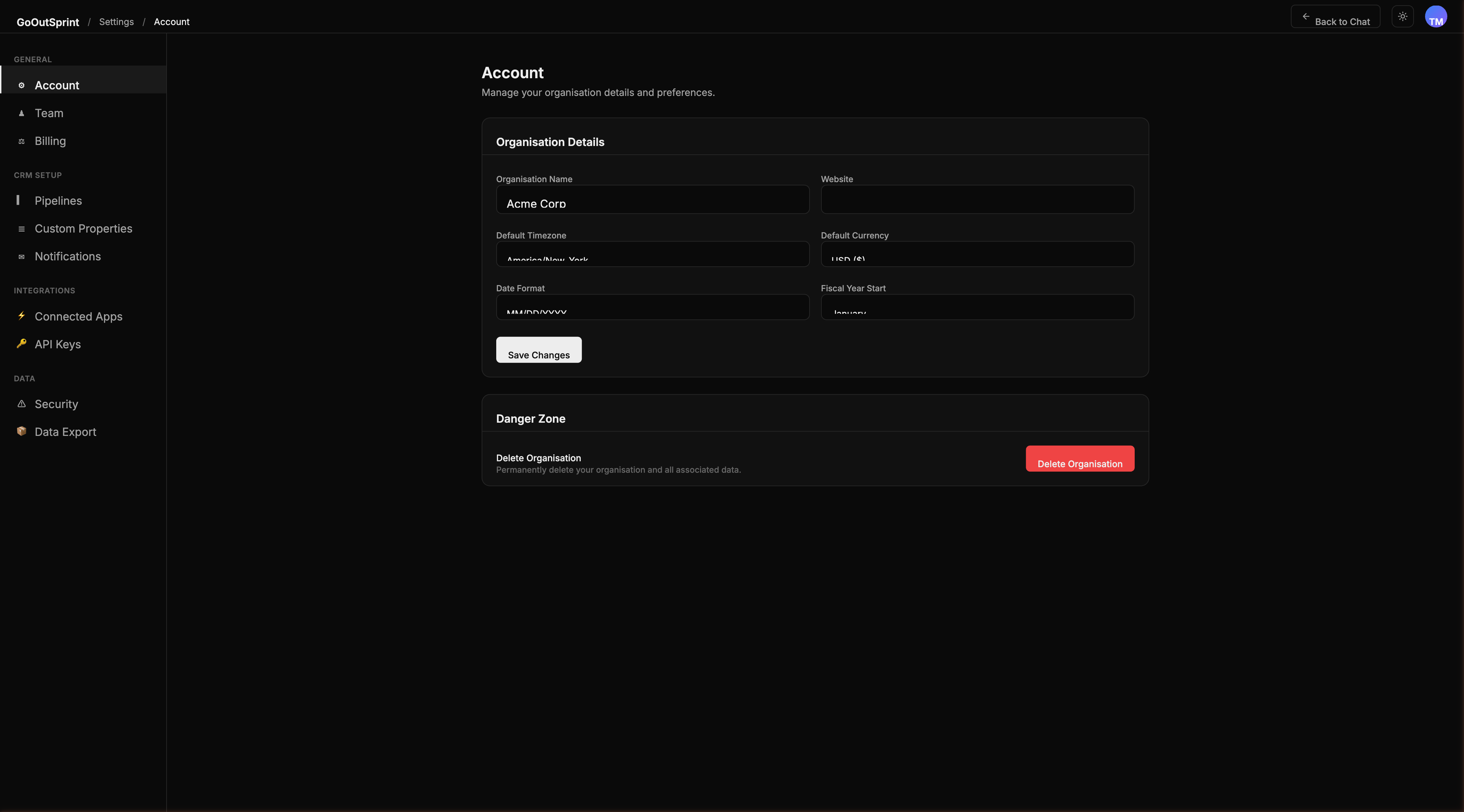
Setting Your Defaults
- Navigate to Settings > Account
- Configure the following fields:
- Default Timezone -- select from standard IANA timezones (e.g., America/New_York, Europe/London)
- Default Currency -- choose USD, GBP, EUR, or another supported currency
- Date Format -- pick your preferred format: MM/DD/YYYY, DD/MM/YYYY, or YYYY-MM-DD
- Click Save
Note
These settings apply across the entire organisation. All deal amounts, reports, and scheduled tasks use these defaults unless overridden by individual user preferences.
How These Settings Are Used
| Setting | Where It Applies |
|---|---|
| Timezone | Task due dates, report time grouping, scheduled emails, activity timestamps |
| Currency | Deal amounts, revenue reports, pipeline value calculations |
| Date format | All date displays throughout the application |
Pro Tip
If your team operates across multiple timezones, pick the timezone used by the majority of your sales team. Individual users see timestamps adjusted to their browser timezone in the chat interface.