Two-Factor Authentication
Add an extra layer of security to your team's accounts by enabling two-factor authentication (2FA). Outsprint supports authenticator apps (TOTP) and SMS as a fallback.
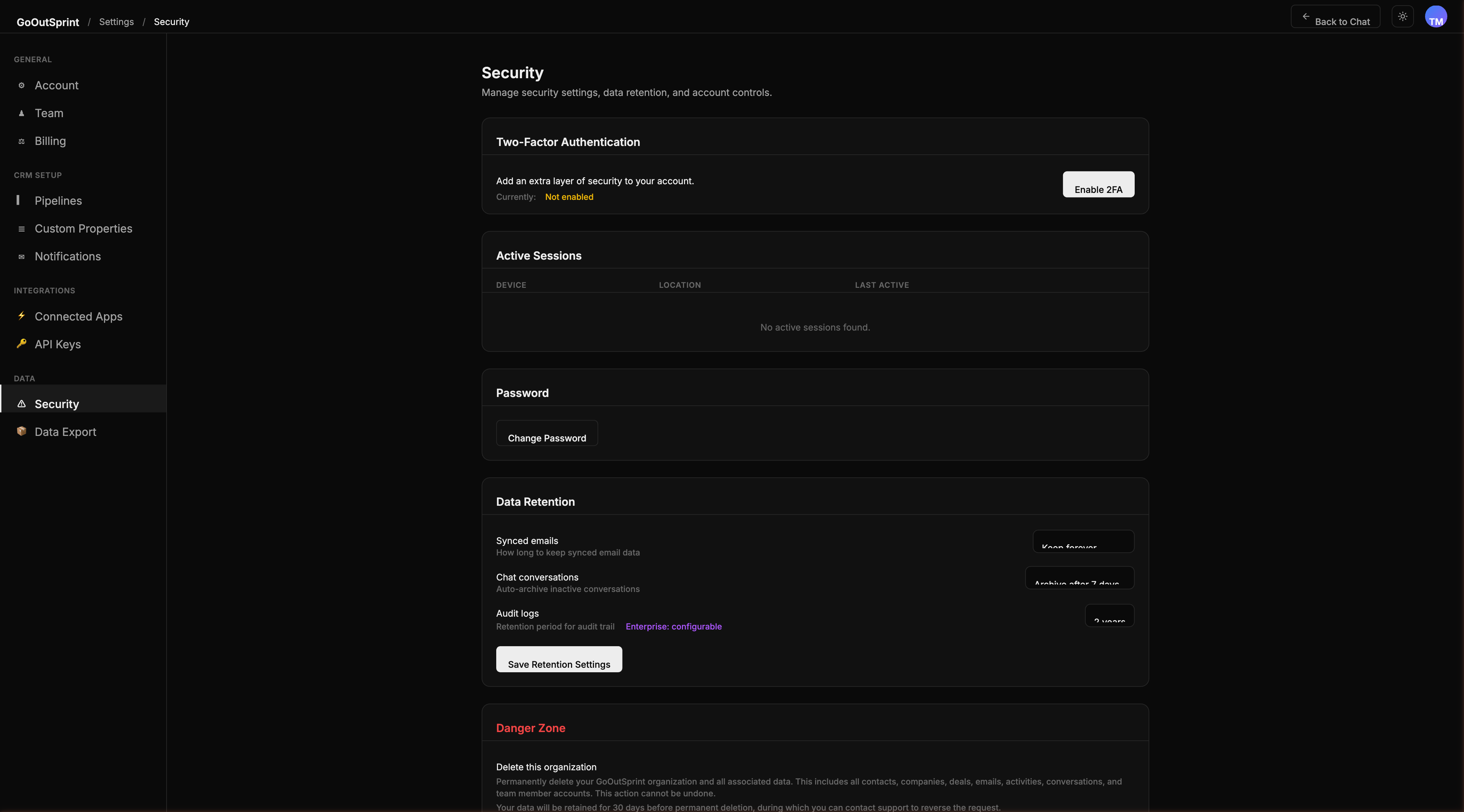
Organisation-Wide 2FA Policy
As an admin, you can set the 2FA policy for your entire organisation:
- Navigate to Settings > Security
- Find the Two-Factor Authentication card
- Choose your enforcement level:
| Setting | Description |
|---|---|
| Off | 2FA is disabled for all users |
| Optional | Users can choose to enable 2FA on their own account |
| Required | All team members must set up 2FA |
- Click Save
Note
When you change the policy to Required, users who have not yet set up 2FA will be prompted on their next login. They have a 7-day grace period before access is blocked.
Supported Methods
- Authenticator App (recommended) -- use Google Authenticator, Authy, 1Password, or any TOTP-compatible app
- SMS -- receive a code via text message as a fallback option
Setting Up 2FA (Individual User)
- Go to your profile settings or Settings > Security
- Click Set Up 2FA
- Scan the QR code with your authenticator app
- Enter the 6-digit verification code to confirm
- Save your backup codes in a safe location
Viewing Team 2FA Status
The Two-Factor Authentication card displays a table showing each team member's name, role, and 2FA status (enabled method or "Not enabled").
Resetting a User's 2FA
If a team member loses access to their authenticator (e.g., lost phone), an admin can reset their 2FA:
- Find the user in the 2FA status table
- Click Reset 2FA from the action menu
- The user will be prompted to set up 2FA again on their next login
Warning
Resetting 2FA immediately removes the user's existing second factor. Make sure you verify the user's identity through another channel before resetting.