Conversation Sidebar
The sidebar on the left side of the screen shows all your past conversations, organized by date. Use it to navigate between conversations and find past discussions.
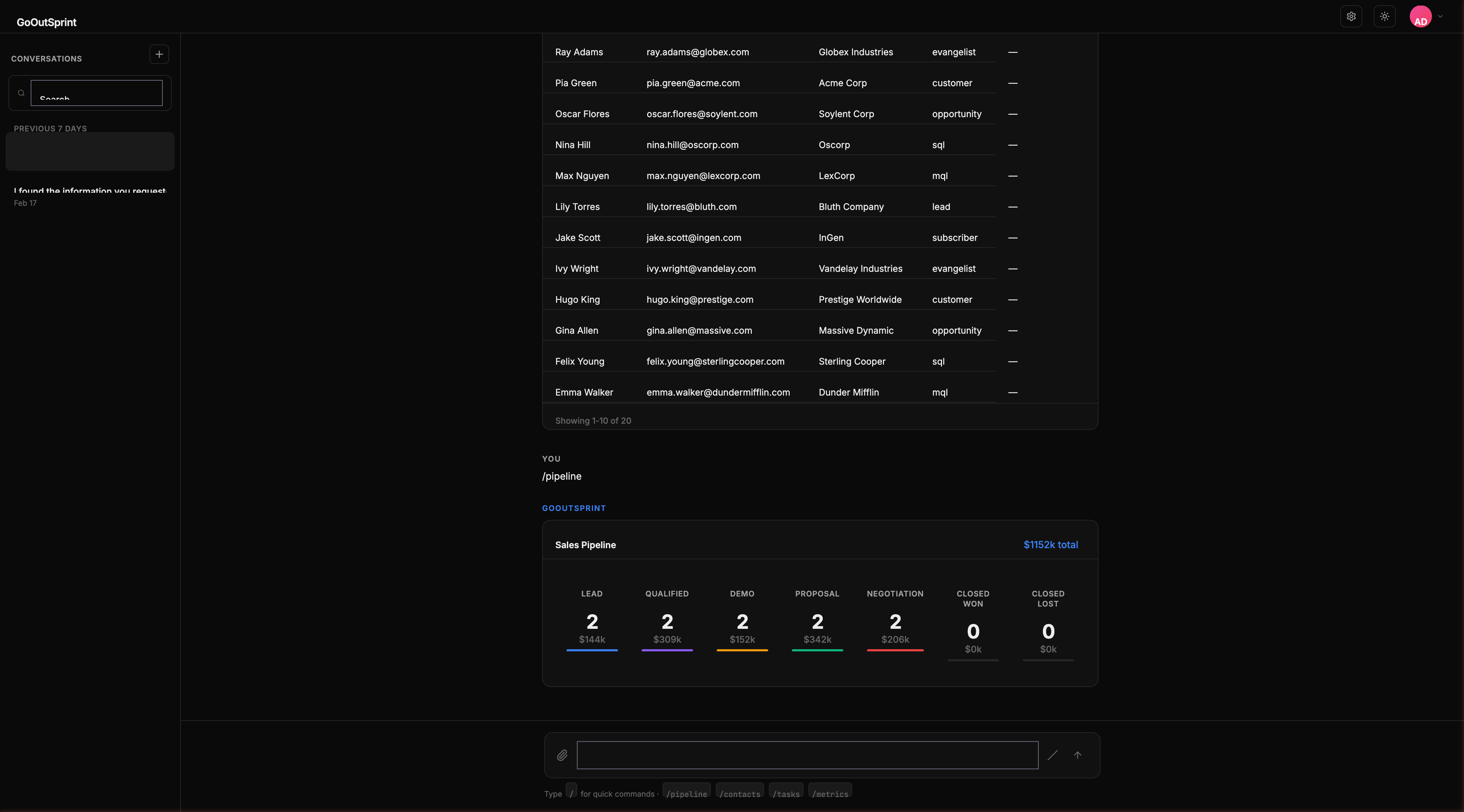
Layout
The sidebar is organized into sections:
- New Chat button at the top
- Search bar to filter conversations by keyword
- Conversations grouped by date:
- Today
- Previous 7 Days
- Older
Each conversation item shows:
- Title (auto-generated or custom)
- Timestamp of the last message
- Preview snippet of the most recent message
The currently active conversation is highlighted with a left border accent.
Searching Conversations
Use the search bar at the top of the sidebar to filter conversations by keyword. Type any term, and the list filters to show only matching conversations.
You can also press Ctrl/Cmd + K to focus the search bar from anywhere.
Context Menu
Right-click (or long-press on mobile) any conversation to access:
- Rename -- Change the conversation title
- Pin to top -- Pin the conversation above date groups
- Delete -- Remove the conversation permanently
Collapsing the Sidebar
On desktop, click the toggle button to collapse the sidebar and give more space to the message area. On tablets and mobile, the sidebar is hidden by default and opens as an overlay from the hamburger menu.
Pro Tip
Pin your most-used conversations (like daily pipeline reviews or team check-ins) so they're always easy to access at the top of the sidebar.