Sending Messages
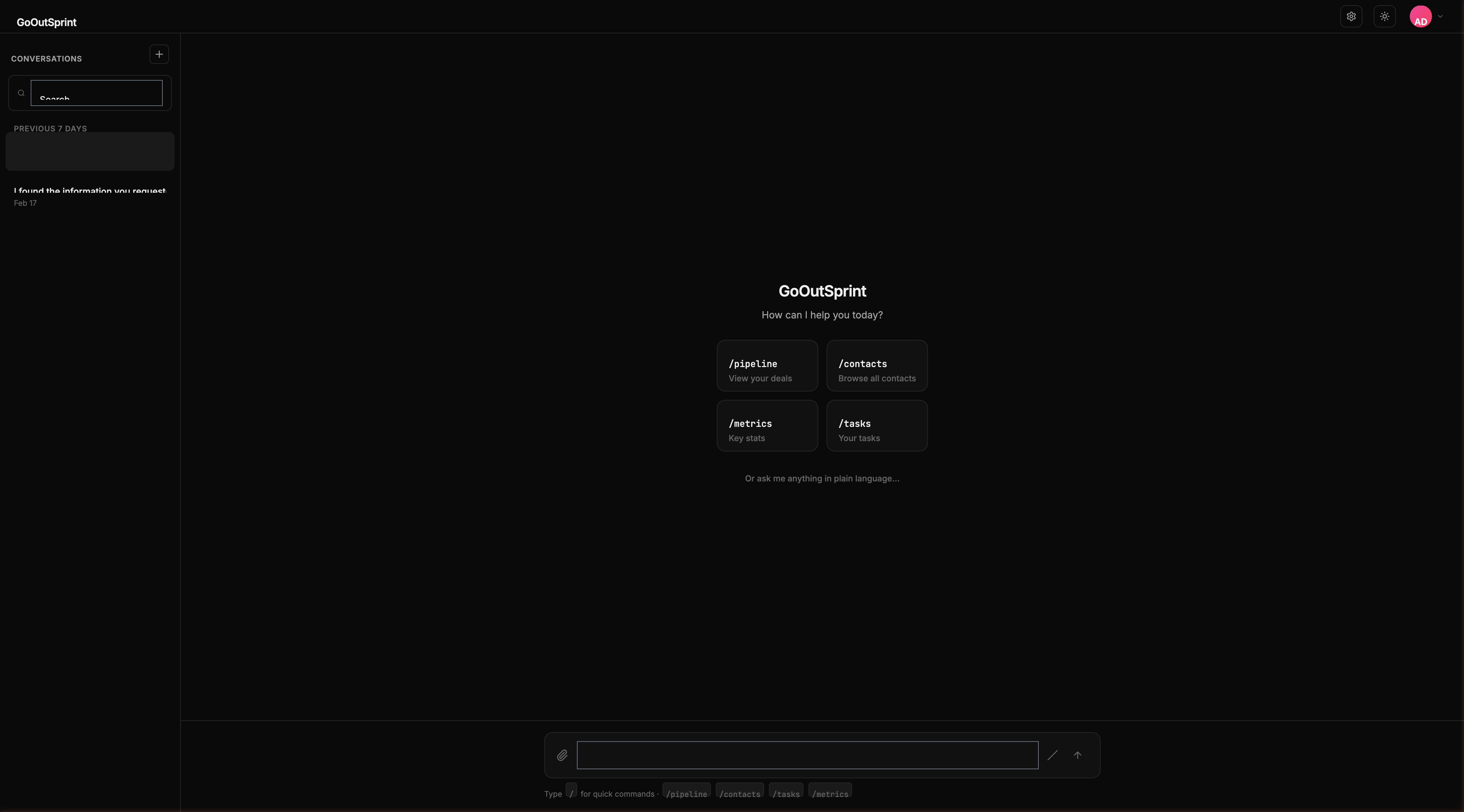
The chat input is where all interaction begins. You can type natural language questions, give instructions, or use slash commands.
Writing Messages
Type your message in the input field at the bottom of the chat. The input expands automatically as you type, up to 4 lines, then scrolls internally.
- Press Enter to send your message
- Press Shift + Enter to add a new line without sending
Streaming Responses
When the AI responds, text appears in real time, token by token. If the AI needs to look up data (like searching for deals or contacts), you'll see a loading indicator:
- A status message like "Searching deals..." appears
- A skeleton placeholder shows where the result will go
- The actual data fills in (as a render block) once the lookup completes
- The AI continues with a text summary after the data
Stopping a Response
While the AI is streaming, a stop button (square icon) replaces the send button. Click it to cancel the current response. You can also press Esc.
Editing a Message
Press the Up Arrow key on an empty input field to edit your last sent message. This lets you rephrase a question or fix a typo without starting over.
Slash Commands in the Input
Type / on an empty input to open the slash command autocomplete. A popover appears above the input with matching commands. As you type more characters, the list filters down.
- Use arrow keys to navigate the list
- Press Enter to select a command
- Press Esc to dismiss the autocomplete
Pro Tip
When the input is empty, a hint bar below it reads "Type / for quick commands." This disappears once you start typing.
Following Up on Results
After Outsprint shows you data (like a table of deals), you can ask follow-up questions in the same conversation. The AI has context about what it just showed you.