Slash Commands
Slash commands are quick-access shortcuts that give you instant results without waiting for AI processing. They query your CRM data directly, making them fast and reliable.
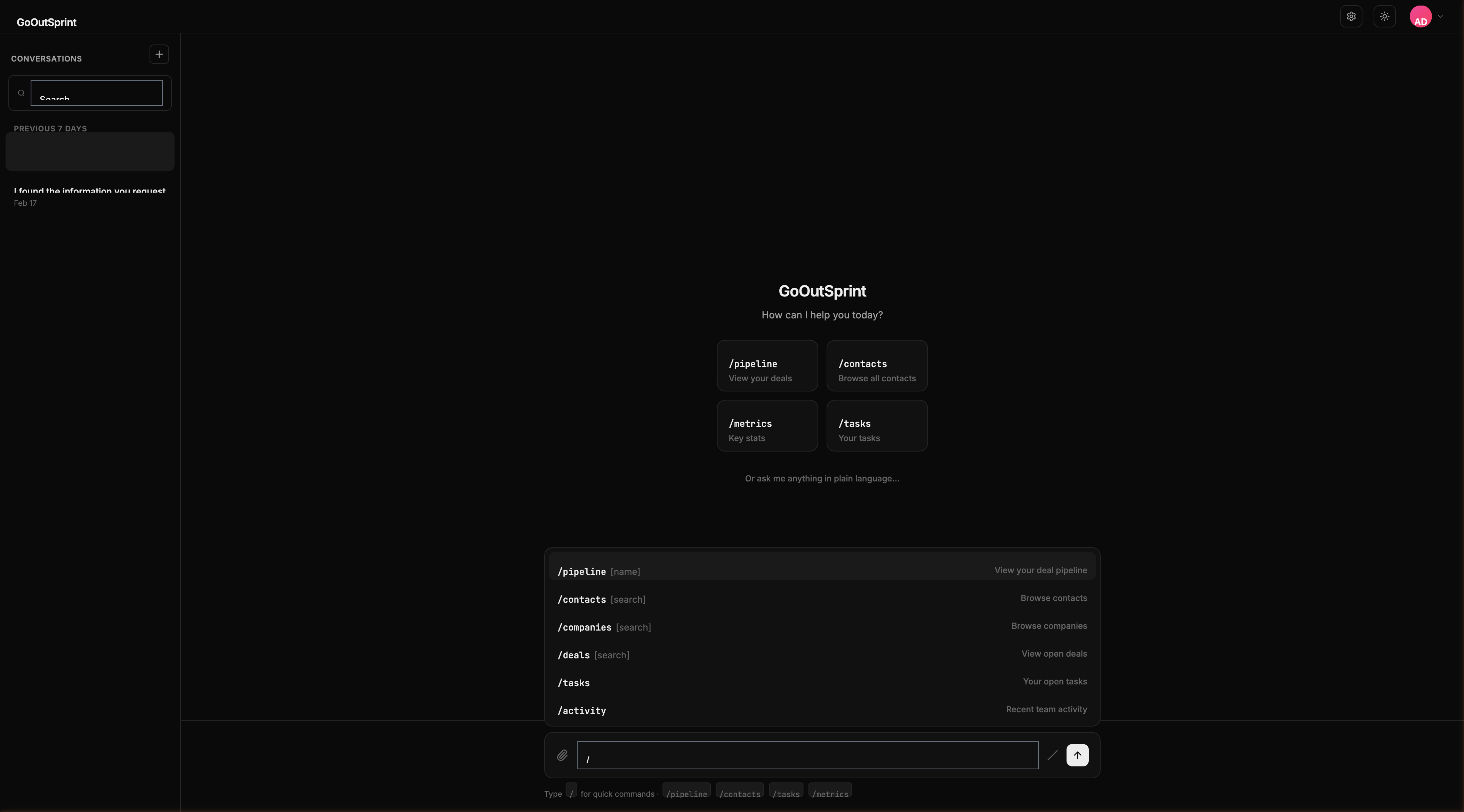
How Slash Commands Work
- Type
/in the chat input (on an empty field or after a space) - An autocomplete menu appears showing the primary commands:
/pipeline,/contacts,/companies,/deals,/tasks, and/activity - Keep typing to filter, or use arrow keys to navigate
- Press Enter to run the selected command
Slash commands bypass the AI and hit the database directly, so results appear almost instantly. The results are displayed as render blocks -- the same visual components the AI uses.
Available Commands
CRM Data
| Command | Description |
|---|---|
/contacts [search] | Browse or search contacts |
/companies [search] | Browse or search companies |
/deals [search] | Browse or search deals |
/tickets [search] | Browse or search support tickets |
/tasks | View your open tasks |
/pipeline [name] | View your deal pipeline |
/search <query> | Search across all record types |
Actions
| Command | Description |
|---|---|
/email | View inbox or compose an email |
/report | View saved reports |
/list | View your contact and company lists |
/import | Import data from a file |
/export | Export records to CSV |
/note | Create a new note |
/workflow | View active workflows |
System
| Command | Description |
|---|---|
/help | List all commands with descriptions |
/settings | Open admin settings |
Slash Commands + AI
Slash command results are added to the conversation context. This means you can run a slash command and then ask follow-up questions in natural language.
You
Outsprint AI
You
Outsprint AI
Pro Tip
Type /help to see a full list of commands with examples right in the chat.