Interface Overview
Outsprint's interface is organized around the chat. Everything you need is accessible from a clean, focused layout.
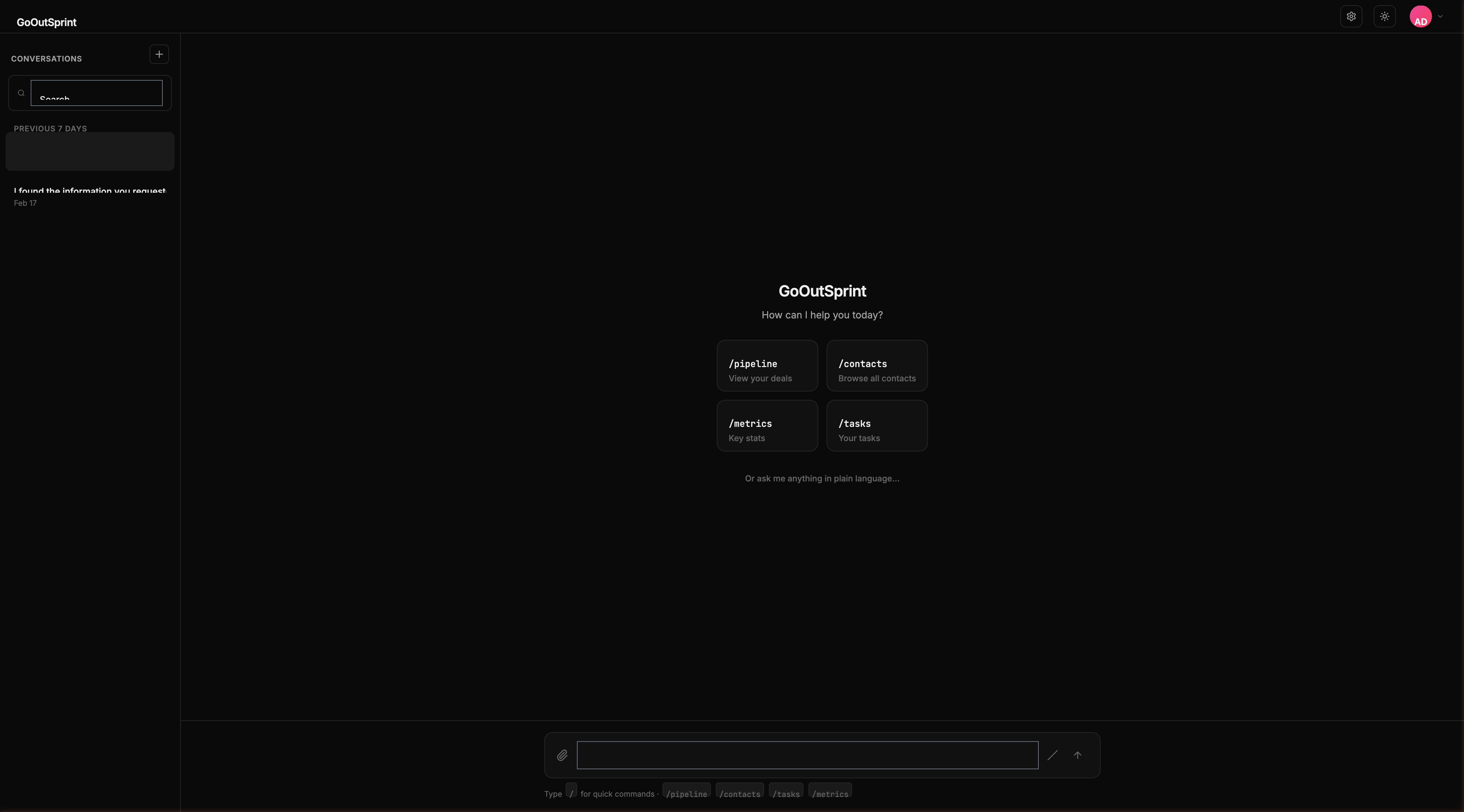
Layout
The interface has three main areas:
Top Bar
The top bar is always visible and contains:
- Logo -- Click to return to a new conversation
- Conversation title -- Auto-generated from your first message
- Theme toggle -- Switch between dark and light mode
- User avatar -- Access your profile and account settings
Conversation Sidebar
The left sidebar shows your conversation history:
- New Chat button at the top to start a fresh conversation
- Search to find past conversations by keyword
- Conversations grouped by date -- Today, Previous 7 Days, and older groups
- Each conversation shows its title, timestamp, and a short preview
You can right-click (or long-press on mobile) any conversation to rename, delete, or pin it to the top.
On desktop, the sidebar is collapsible. On mobile, it opens as an overlay from the hamburger menu.
Message Area
The central area where your conversation takes place:
- Your messages appear with a "You" label
- AI responses appear with the "Outsprint" label, often including render blocks (tables, charts, pipelines, forms)
- System messages appear centered in muted text for events like "Conversation started" or "Imported 5,000 contacts"
- Date separators group messages by day
Input Area
At the bottom of the message area:
- Text input -- Type your message here. It expands up to 4 lines
- Attach button (paperclip icon) -- Upload files like images, PDFs, or CSVs
- Slash command button (
/) -- Opens the command autocomplete - Send button -- Or press Enter to send
- Hint bar -- Shows "Type / for quick commands" when the input is empty
Note
While the AI is responding, the input field is disabled and shows "Outsprint is thinking..." A stop button appears so you can cancel the response.
Streaming Responses
When the AI responds, you see text appearing token by token in real time. If the AI needs to look up data, you'll see a loading state like "Searching deals..." with a skeleton placeholder that fills in with the actual result.
Error Handling
If something goes wrong, you'll see a red-tinted error message with a Retry button. Slash commands continue to work even if the AI service is temporarily unavailable, since they query the database directly.